


Getting the right volume is only part of getting better sound from a Windows PC. You can turn the volume up to 100%, but that does not necessarily make music clearer, dialogue easier to understand, or game audio more balanced. In many cases, the real problem is the way different frequencies are being reproduced.
This is where software equalization becomes useful. Instead of simply making everything louder, an equalizer lets you adjust specific parts of the frequency range. You can reduce muddy bass, control harsh treble, improve speech clarity, or create a more suitable sound profile for headphones and speakers.
For Windows users who want detailed control without paying for an expensive audio application, Equalizer APO is one of the more flexible options available.
What Is Equalizer APO?
Equalizer APO is a free, open-source audio equalizer designed for Windows. It works within the Windows audio processing chain, allowing you to apply equalization to system audio rather than limiting adjustments to a single application.
That system-wide approach is one of its biggest advantages. A properly configured setup can affect audio from music players, browsers, games, communication applications, and other software that uses the Windows audio engine.
Unlike a basic five-band or ten-band equalizer, Equalizer APO supports parametric filters. This gives users much more control over the frequency, gain, and bandwidth of individual adjustments.
For example, instead of simply moving a “Bass” slider upward, you can target a specific low-frequency area and decide exactly how much you want to boost or reduce it.
Why Volume and Equalization Should Be Treated Separately
Volume and equalization solve different problems.
Volume determines how loud the entire signal is. Equalization changes the balance between different frequencies within that signal.
This distinction matters because increasing volume cannot fix every audio problem. If voices sound buried under background music, turning everything up simply makes the music louder as well. If headphones have excessive bass, increasing the overall volume will not make that bass more controlled.
A better approach is to identify what is wrong with the sound and adjust the relevant frequency range.
For instance, reducing an excessive low-mid range can sometimes make speech appear clearer without increasing the overall output level. Similarly, reducing an overly aggressive treble region can make long listening sessions more comfortable without sacrificing overall volume.
How Equalizer APO Gives You More Control
The main strength of Equalizer APO is its filtering system.
You can create adjustments around specific frequencies instead of relying entirely on fixed-band sliders. This makes it useful for people who want to fine-tune headphones, desktop speakers, gaming headsets, or other Windows playback devices.
A typical adjustment might include:
- A small reduction in a muddy frequency range
- A controlled bass boost
- A reduction in harsh upper-mid frequencies
- A gentle high-frequency adjustment
- A negative preamp to reduce the risk of clipping
The exact values should depend on the hardware and the desired result. There is no universal EQ profile that sounds perfect on every pair of headphones or speakers.
That is why copying random EQ settings from another device can produce disappointing results. Headphones with different frequency responses can react very differently to the same filters.
Equalizer APO and Headphone Listening
Headphones are one of the most obvious use cases for system-wide equalization.
Two headphones can reproduce the same song with noticeably different tonal balances. One may emphasize bass, another may have a strong upper-mid presence, while another may sound relatively neutral.
Equalization can compensate for some of these differences.
For general listening, a balanced profile can help maintain a natural presentation. For bass-heavy music, you may prefer additional low-frequency energy. For podcasts and spoken content, reducing unnecessary low-end buildup and carefully improving the presence region can make voices easier to follow.
The important point is to make small changes rather than dramatically reshaping the entire frequency response.
Using EQ Without Creating Distortion
One common mistake with equalizers is boosting frequencies without leaving enough headroom.
Suppose a particular frequency receives a significant positive gain. If the original signal is already close to its maximum digital level, that boost can cause clipping.
Clipping may produce audible distortion, especially when several boosted frequencies overlap.
A negative preamp is often used to create headroom before applying boosts. For example, if a profile contains several positive filters, lowering the preamp can reduce the likelihood that those boosts push the signal beyond its available range.
This is particularly important when experimenting with bass-heavy profiles. Bass boosts can require substantial headroom, depending on the source material and filter settings.
Equalizer APO for Gaming
Equalization can also be useful for gaming, although the goal is different from music listening.
Competitive games often contain important audio cues in particular frequency ranges. Footsteps, reload sounds, environmental details, and other effects can become easier or harder to perceive depending on the game’s mix and the characteristics of your headphones.
An EQ profile can sometimes emphasize useful details while reducing frequencies that make the overall mix feel congested.
However, EQ should not be treated as a magic competitive advantage. It cannot create audio information that is absent from the game’s mix. It simply changes the balance of what is already present.
For casual gaming, a general-purpose profile may be preferable because aggressively boosting certain frequencies can make explosions, gunfire, and other effects unnecessarily harsh.
Equalizer APO and Speakers
Equalization is not limited to headphones.
Desktop speakers can also benefit from careful EQ, particularly when their placement affects the perceived sound. Speakers positioned close to walls or corners can produce more low-frequency energy because of room interaction.
Instead of simply lowering the master volume, targeted EQ adjustments can sometimes make the resulting sound more balanced.
Room acoustics still matter, though. Software equalization cannot completely replace physical room treatment or proper speaker placement.
If a room has major acoustic problems, EQ should be viewed as one part of the solution rather than a complete replacement for physical changes.
Why Peace GUI Is Often Used With Equalizer APO
Equalizer APO is powerful, but its configuration system can feel technical to new users.
This is one reason many users install Peace, a graphical interface designed to work with Equalizer APO. Peace provides sliders, presets, graphs, and other controls that make the underlying equalizer easier to manage.
The important distinction is that Peace is the interface while Equalizer APO performs the actual audio processing.
This combination gives beginners an easier way to experiment while retaining the flexibility of parametric equalization.
If you are completely new to the software, a detailed installation and configuration walkthrough can make the process much easier:
The key is to make sure Equalizer APO is attached to the correct Windows playback device. A perfectly configured EQ will appear to do nothing if the software is installed on a different audio output than the one currently being used.
Common Problems With Windows EQ Software
System-wide audio processing can sometimes stop working after changes to Windows or audio-device configurations.
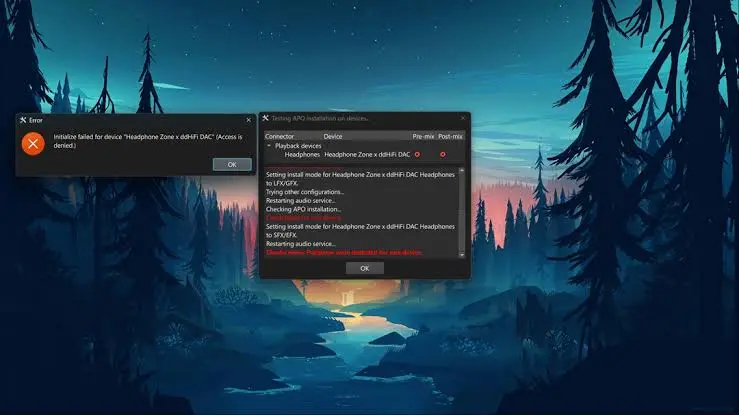
One common issue is that the equalizer is installed but attached to the wrong playback device. Another possibility is that an application is bypassing the normal Windows audio processing path.
For example, some applications can use exclusive audio modes or other output systems that prevent system-level processing from affecting the signal.
Bluetooth devices can also introduce additional complications because Windows may expose separate playback and hands-free profiles.
Before changing dozens of settings, it is better to determine whether the equalizer is actually processing the audio. A simple test with a noticeable preamp change can help establish whether the configuration is active.
Once the basic processing is confirmed, troubleshooting becomes much easier.
How to Build a Better EQ Profile
There is no need to immediately create a complicated profile with dozens of filters.
Start with the problem you are trying to solve.
If the sound is too bass-heavy, make a small low-frequency adjustment. If vocals are difficult to understand, investigate the midrange before simply increasing the entire volume. If the treble sounds aggressive, try a modest reduction in the relevant region.
Listen for the result and make one change at a time.
This approach is more useful than adding many filters simultaneously because you can understand exactly what each adjustment is doing.
It is also worth keeping a backup of your original configuration. If an experimental profile makes the sound worse, you can return to the previous setup instead of rebuilding everything.
Should You Use Equalizer APO?
Equalizer APO makes the most sense for Windows users who want detailed control over their audio and are comfortable spending some time learning how EQ works.
It is particularly useful if you:
- Want a system-wide equalizer
- Use Windows as your primary audio platform
- Want parametric EQ rather than basic sliders
- Need different profiles for different listening situations
- Want to experiment with headphone or speaker tuning
- Prefer a free and open-source solution
It may be less attractive if you only want a simple volume control or a polished interface with minimal configuration.
The software is powerful because it exposes a lot of control, but that also means beginners may need some guidance before they understand preamp, filters, gain, frequency, and Q values.
Final Thoughts
Better audio does not always mean louder audio.
A carefully adjusted frequency response can make music feel more balanced, dialogue easier to follow, and gaming audio more suitable for the situation. The goal is not to push every frequency upward, but to create a controlled signal that works well with your particular hardware.
Equalizer APO is useful in this respect because it provides Windows users with detailed system-wide equalization without requiring a paid audio suite.
Start with small changes, keep enough headroom to avoid clipping, and test each adjustment with the content you actually listen to. With a little experimentation, software EQ can become a practical part of a Windows audio setup rather than just another collection of sliders.
